Pie menu plugin for Bricks Builder
Flick. Build. Repeat.
Hold a shortcut, flick toward an action, release. Bricks Flick puts the actions you use all day in a wheel around your pointer, right inside the Bricks builder.
Coming soon
Be the first to know
Bricks Flick isn't out yet. Leave your email and you'll get one message the day you can start your free 14-day trial.
Example Flick Wheel
Your next action is a flick away
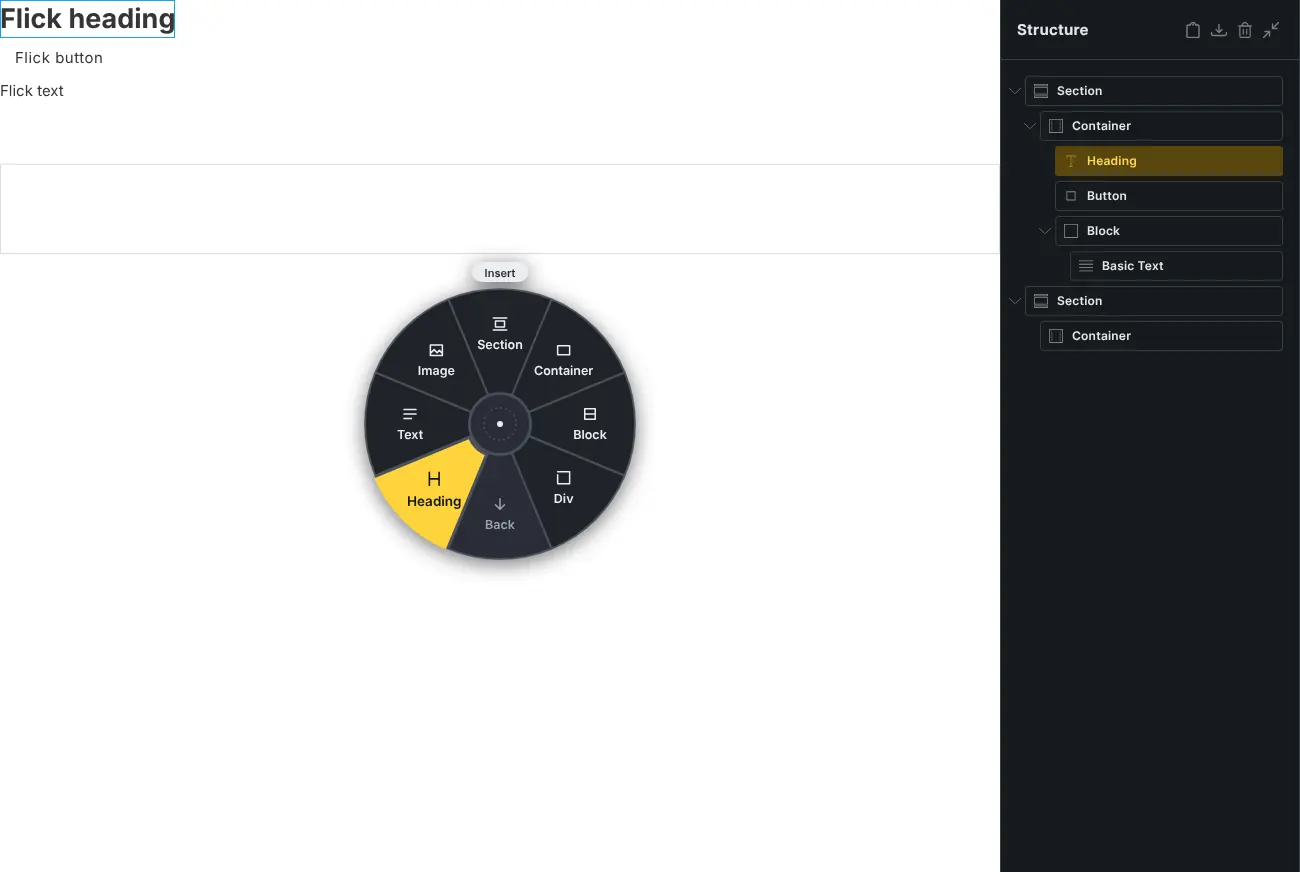
The actions you use all day sit in a ring around your pointer. No hunting for buttons, no aiming, in the canvas or in the panels.
Hold, flick, release
The wheel opens where your pointer already is, so every action is the same short flick away.
Hold and flick
Hold Alt+Q (Option+Q on a Mac), flick toward an action and let go. It runs on release, and overshooting the wheel still counts.
Tap for a sticky wheel
Tap the shortcut instead and the wheel stays open. Hover an action, then click, press Enter or tap the shortcut again.
Submenus
Flick past the rim on a wedge with an arrow to open its submenu around your pointer. Backspace or a right click goes back, Escape cancels.
Works where your focus is
The wheel opens with focus in the canvas or in the panels, and never while you're typing in a field.
Every action, the Bricks way
Actions run through Bricks itself, so they show up in the canvas and land in the undo history like a toolbar click.
Insert
Section, Container, Block, Div, Heading, Text, Button and Image. The new element is selected, so the next insert lands inside or after it.
Edit
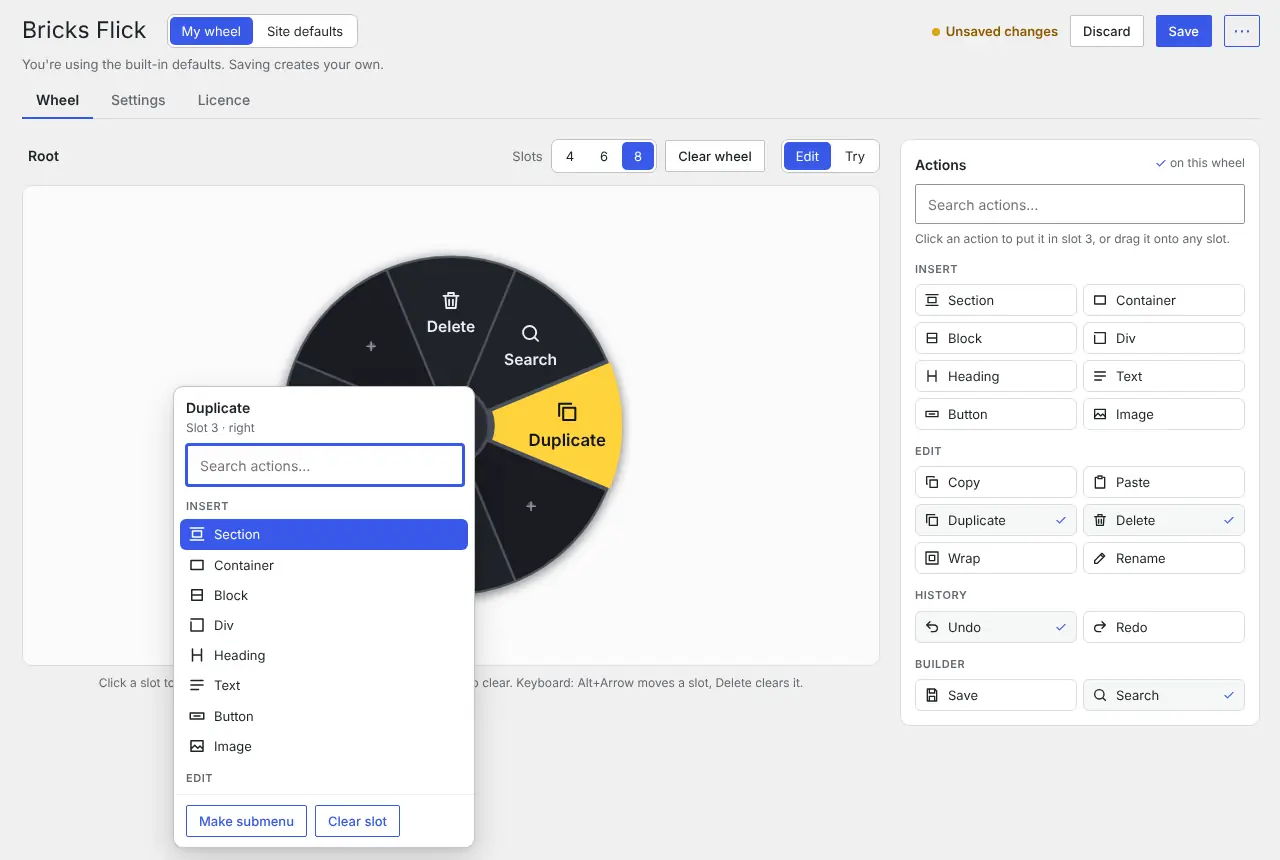
Duplicate, Delete, Wrap, Copy, Paste, and Rename, which opens Bricks' own rename field in the Structure panel.
History and builder
Undo, Redo, Save, and Search, which opens the Bricks command palette.
Clear feedback
Actions that can't run right now are greyed out, and the wheel tells you why, such as "Select an element first" or "Nothing to undo".
Make it yours
Everyone who builds sets up their own wheel in WordPress admin. Administrators choose the defaults for the rest.
Wheel Editor
Click a wedge to pick an action, or drag one from the action library. Make submenus and choose 4, 6 or 8 slots per wheel.
Try mode
Test the wheel right in the editor, with your shortcut and your unsaved changes, before you save.
Shortcut and feel
Record your own shortcut (ones that clash with Bricks are refused), and set the sensitivity, wheel size S, M, L or XL, and a light or dark theme.
Site defaults and export
Set a default wheel for everyone on the site, and export your settings as a file to import on your other sites.
See it in Bricks
Try it free. Then pick how to pay.
Every plan has every feature. Start with a free 14-day trial on one site, with just your email and no card.
Coming soon
Free trial
€0for 14 days
1 site
Every feature on one site for 14 days. Just your email, no card. One trial per email and per site.
Notify me at launchComing soon
Yearly
€29per year
Unlimited sites
Every feature and plugin updates on as many sites as you build. Renews every year.
Notify me at launchComing soon
Lifetime
€79once
Unlimited sites
Unlimited sites and lifetime updates. Pay once, no renewal.
Notify me at launch
Prices exclude VAT, which is added at checkout. Every site you activate counts, local and development sites included. Compare plans · License and refund terms
Set up in three steps
- 01
Download and install
Download the plugin, upload it under Plugins › Add New › Upload Plugin and activate it. It does nothing in the builder until you add a key.
- 02
Start your trial or add your key
Start your free 14-day trial with your email and paste the trial key under Bricks Flick › Licence, or paste the key from your purchase.
- 03
Hold Alt+Q in Bricks
Open any page in the builder, hold Alt+Q (Option+Q on a Mac), flick toward an action and let go. Arrange your actions in WordPress admin › Bricks Flick.
Can I try it before I buy?
Yes. Start your free 14-day trial with just your email, no card. You get a trial key by email; download the plugin, install it and paste the key under Bricks Flick › Licence. The trial runs on one site for 14 days from when you get the key. Without a trial or license key the plugin does nothing in the builder.
Can I start more than one trial?
No. There is one trial per email address and one per site, so a second trial key is refused for an email or a site that already had one. Local and development sites count as sites too.
What happens when the trial ends?
The wheel turns off on that site, with a small notice linking to the plans. Buy a plan and paste its key under Bricks Flick › Licence, on the same site, and the wheel is back at once. The admin page and your settings stay, so nothing is lost.
What counts as a site?
Each site you activate your license on uses one activation, local and development sites included. Bricks Flick is used while sites are being built, so there's no exception for localhost or .local. Deactivating the license or the plugin on a site frees its activation.
What happens when a yearly license ends?
The wheel keeps working for 7 more days. After that it turns off on your sites, and updates stop, until you renew. Lifetime licenses don't expire.
Can I get a refund?
Yes. Write to hello@martej.com within 14 days of buying or of a yearly renewal and you'll get that payment back in full, no reason needed. The license and refund terms have the details.
Which versions of Bricks and WordPress do I need?
Bricks 2.4 or newer, WordPress 6.0 or newer and PHP 7.4 or newer. Bricks Flick loads only in the builder, never on your site's front end.
Does it work on Windows and macOS?
Yes. It runs in the browser with Bricks. The default shortcut is Alt+Q, or Option+Q on a Mac, and you can record any shortcut that doesn't clash with Bricks.
Does everyone on the site get the same wheel?
Everyone who can use the builder has their own shortcut, feel and wheels. Administrators set site defaults that apply to anyone who hasn't made their own.
How do I add my license key?
In WordPress, open Bricks Flick › Licence, paste the key and press Activate. You need to be an administrator. A trial key goes in the same place, and a paid key replaces it. Updates then arrive under Dashboard › Updates like any other plugin.
Coming soon
Get it the day it launches
Bricks Flick is almost ready for your builder. Leave your email and I'll tell you the moment it's out, with nothing else in between.
Bricks Flick is made and sold by Martej. It is not made, endorsed or supported by Bricks or WordPress, and a Bricks Flick license is not part of a Bricks license.